
If you forget your Corvee Software password, you have two ways to recover your account: using your Emergency Recovery Kit or using Colleague recovery.
Corvee’s software is designed for self-service, so you will never need to reach out to our support staff for password-related issues. What’s more, your password is only visible to you as a user, so it’s imperative that you download your Emergency Recovery Kit when you first log in to Corvee.
On the Corvee log in page, click Recover Account (or visit https://app.corvee.com/recover). Then enter your email address and hit the Recover button.

Corvee will notify you that a recovery link has been sent to the email address you entered.

Once you receive the email from Corvee, click the Continue button to open the password reset page.

Enter a new password, making sure it contains a minimum of eight alpha-numeric characters.

On the next screen, you will have the option to choose Colleague recovery or Emergency Kit recovery.

Colleague Recovery
To use colleague recovery, select a user to notify about your account recovery request and click Request recovery.

The user you selected will then see your recovery request at the top of the Dashboard after logging in to Corvee. The user will also receive an email alerting them that you are requesting help recovering their account.

When that user accepts your request, you will receive an email alerting you that your request has been approved. You can then use your new password to log in to Corvee.

Emergency Recovery Kit
To use your Emergency Recovery Kit, select I have an emergency kit on the Account recovery page after changing your Corvee password.

Locate your Emergency Kit PDF, which the application prompted you to download and save when you first created your Corvee account. (The Emergency Recovery Kit can also be downloaded from the Security page under your account settings.) The Emergency Recovery Kit contains a Recovery key that can be used to manually approve the change in your account password.
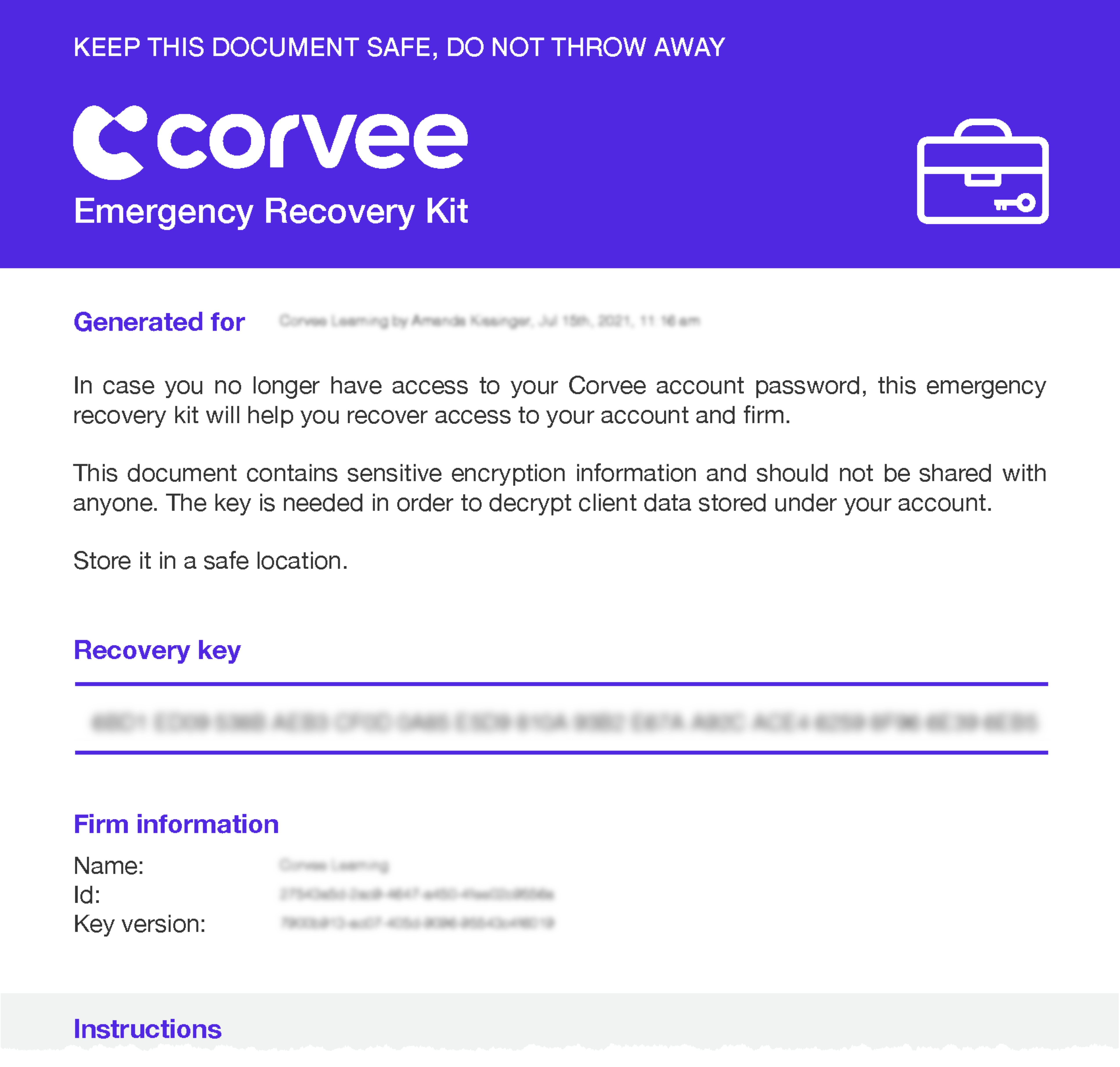
Click the Enter key button for your account.

Copy and paste your recovery key from the Emergency Kit PDF in the dialogue box, then click the Continue button.

Click the Recover button after entering your recovery key.

If your recovery was successful, Corvee will allow you to log in using your new password.

Comments
0 comments
Please sign in to leave a comment.